The Fire Compliance List supports bulk actions, allowing you to update multiple records at once.
1 Changing Contractor in Bulk #
- On the Fire Compliance List, select the records you want to update using the checkboxes next to each row (or use Select All).
- Choose the new contractor from the Contractor dropdown at the top.
- Click Change Contractor and Email Request.
- The selected records are updated to the new contractor, and inspection request emails are drafted in Outlook for each.
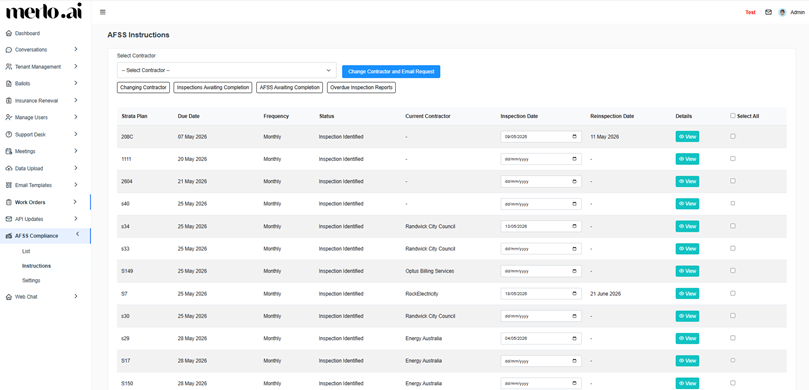
[SCREENSHOT: Bulk action area on the Fire Compliance List with contractor dropdown and Change Contractor button]
2 Inspections Awaiting Completion #
Click the Awaiting Completion filter to display all records where the inspection is complete but not yet marked as finished. You can then:
- Select one or more records using checkboxes.
- Click Send Inspection Report Reminder to send a reminder email for each selected record.
- Click Mark Inspection as Complete to bulk-complete selected records.
3 AFSS Awaiting Completion #
Click the AFSS Awaiting Completion filter to list all records where the final AFSS submission is still pending. Select records and click Mark as Complete to finalise them in bulk.
4 Open Inspection Reports #
This view lists records where the inspection due date has passed but no report has been received or actioned. Available bulk actions:
- Send Inspection Report Reminder – sends a reminder email to the contractor.
- Mark Inspection Report Uploaded – marks the report as received.
Reinspection #
A reinspection is required when an initial inspection is completed but there is outstanding remediation work that needs follow-up verification.
To schedule a reinspection:
- Open the relevant record from the Fire Compliance List.
- Click Edit.
- Once the initial inspection is complete, enter the Reinspection Date, Reinspection Time, and any Reinspection Remarks.
- If defects were found during the initial inspection, check the Defects Found checkbox.
- Click Save.


