Overview #
The Templates feature in Merlo AI allows your team to create and manage reusable email templates that Merlo can use to draft and send emails on your behalf. Templates are ideal for routine communications such as bulk notices, committee updates, insurance renewal requests, and owner or tenant correspondence.
Each template is built with dynamic placeholders that Merlo automatically populates with relevant data from your strata system — such as plan numbers, lot numbers, and property addresses — at the point of drafting. This eliminates repetitive manual drafting while ensuring every email is accurate and contextually relevant.
This guide covers how to create new templates and how to instruct Merlo to use them when generating emails.
Creating New Templates #
In order to create a new template, please ensure you have access to Merlo AI dashboard. Any issues accessing the Dashboard, please contact us on support@merlo.ai
- Login to Dashboard
- Open Email Templates section
- Click “Create New Template”
- Enter the title for your email template, the title can be a descriptive name that can help identify the template
- Enter the name for your email template, please note the name cannot have spaces and will be used to programatically identify the template
- Provide template instructions, this is the instructions the AI will follow when using this template, you can provide instructions such as what information to populate into place holders.
- Create your email template body in the content field.
- Attachment field is an optional field where you can make Merlo to attach a document within SharePoint when drafting the email. This link must be a SharePoint Shared Document Link.
- Important: To attach multiple documents to the template, you must seperate your links with || (double separator keys). Also the links must be document share links from SharePoint.
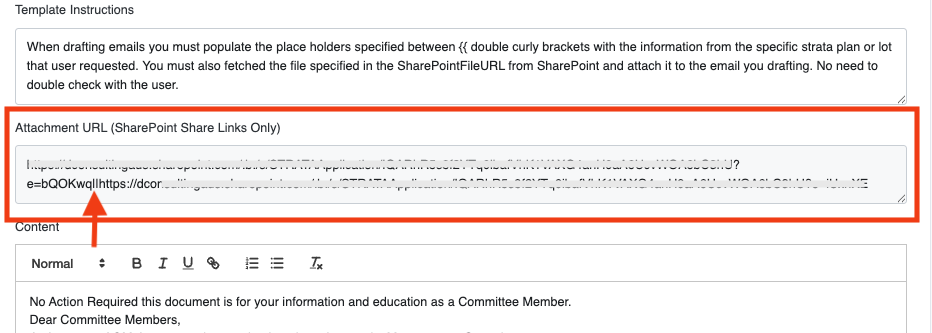
Important Tips When Creating Template Content:
- Use place holders so Merlo AI can populate relevant information from the strata system at the point of email drafting. The place holders must be created using {{ }} (double curly brackets as shown below.
E.g.:
Dear Owner/Agent,
As we prepare for the insurance renewal for strata plan {{splan}} at {{address}}, can you please provide us the business details of current tenant at LOT {{lotnumber}} as soon as possible. Kindly provide the nature of their business operation and the contract end date.
Best Regards
Merlo AI Assistant
- Not copy paste the template from existing Work documents or other sources as this may impact the appearance of the email.
- Do not leave extra line breaks as this may create additional spacing when Merlo drafting your email within Outlook. Please note this behaviour can slightly change depending on whether you are using Outlook for Windows or Mac.
Asking Merlo to Generate Emails Using Templates #
Once the templates are created, you will be able to ask Merlo to use these templates when drafting emails. Templates are great when it comes to sending bulk notices, emails to either committee members or owners.
Check out our video on YouTube:
For best results you must follow these steps:
Ask Merlo to retrieve the template you wish to use for the email. This step is important as you can confirm the template is correct and available in the system.
E.g. “get me the rubbish on common property template” – Merlo will show you the correct template.
Then you can specify the recipients and ask Merlo to send the email.
E.g. “send this to all the owners at plan 12345 and 67892”
If unsure which template you want or what it calls, ask Merlo to show all the templates in the database. This will give you the list of all the templates currently available in your system.
E.g. “can you get me the list of templates we have in the db?”
Then you can pick the name from the list and ask Merlo to send an email using the template. Use the name Merlo AI share with you in the instructions. Lets assume you picked the disruptive behaviour template.
E.g. “use the disruptive behaviour template and email the owners of unit 1 and 2 of plan 35345“
Want to attach more documents to the email? Just drag and drop them to Merlo chat window and Ask Merlo to attach them to the email.
E.g. “use the disruptive behaviour template and email the owners of unit 1 and 2 of plan 35345. Also attach these documents to the email as well.“


