1 Opening the Record #
From the Fire Compliance List, click the View button on any record to open the detail screen. The screen displays:
- Strata Plan Number, Frequency, Contract ID, Due Date, Last Inspection Date
- Status, Contractor, Inspection Date and Time
- Reinspection Date, Reinspection Time, Reinspection Remarks
- Inspection Report Link (auto populated when a report is uploaded to SharePoint, or can be pasted manually)
- Defects Found checkbox
- Internal Notes section
- Final Signed-Off AFSS Document Link
- Status Timeline (visual boxes showing each stage – coloured when completed)
- Detailed Activity Timeline (full audit trail of every action, user, date, and time)
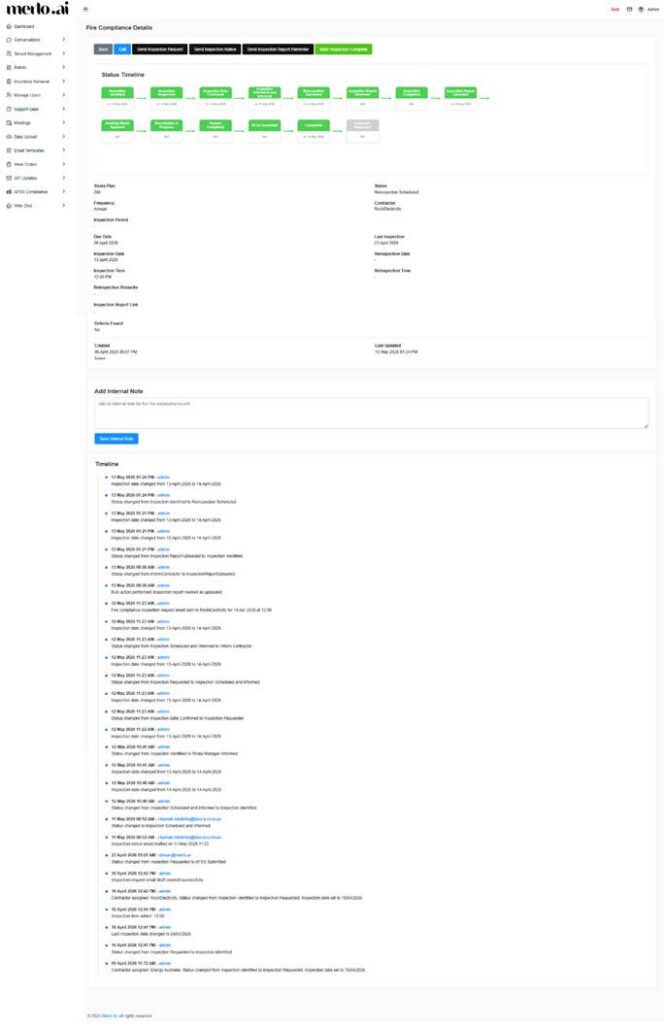
[SCREENSHOT: Fire Compliance detail view screen with all sections visible]
2 Editing a Record #
Click Edit to open the edit screen. Read-only fields are Strata Plan Number, Frequency, Inspection Period, Due Date, and Last Inspection Date. All other fields can be updated.
Click Save to apply changes, Cancel to discard, or Back to return without saving.
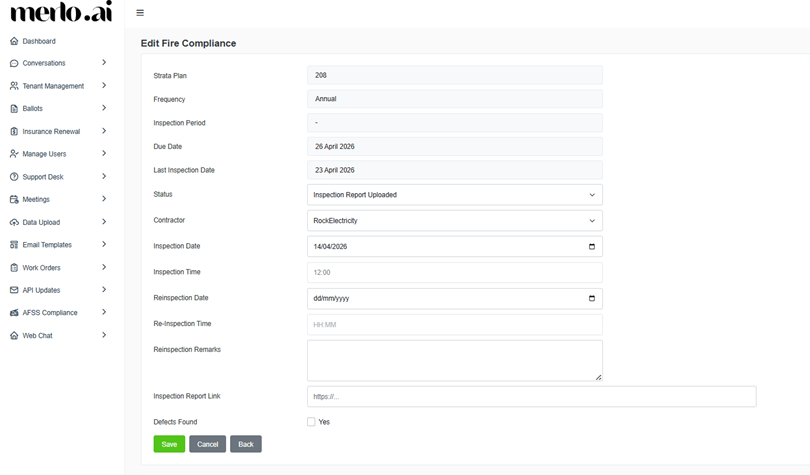
[SCREENSHOT: Edit screen of a Fire Compliance Record]
3 Send Inspection Request #
Once you click Send Inspection Request on the details screen, the email system will draft an email to the relevant contractor.
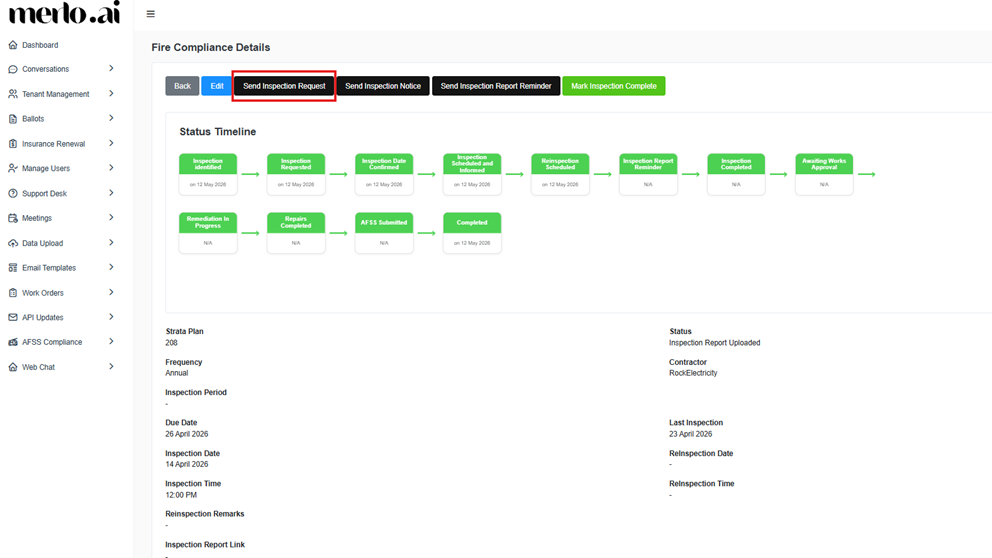
[SCREENSHOT: Button for Send Inspection Request]
- Click Send Inspection Request.
- A confirmation dialog appears: Are you sure you want to send this? Click Ok to proceed or Cancel to go back.
- The system drafts an email in the strata manager’s Outlook with the following format:
| Field | Content |
| Subject | Reminder: AFSS Inspection Required – [Strata Plan Number] |
| Body | Dear [Contractor Name], this is a reminder to organise the fire compliance inspection for Strata Plan [Number] at [Property Address]. Please kindly confirm your availability. Best regards. |
- A success message confirms: Inspection request has been drafted successfully.
- The email is saved as a draft in Outlook – it is not sent automatically. Review and send it from your Outlook drafts folder.
- Once the contractor confirms the inspection date and time, the strata manager will update it in the system.
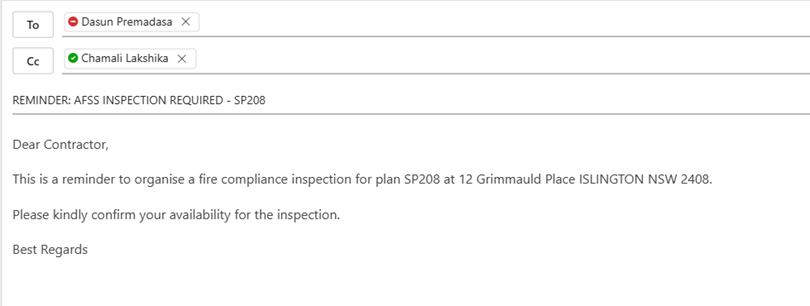
[SCREENSHOT: Outlook draft email for inspection request]
4 Send Inspection Notice #
Use this button to notify lot owners or the committee members that an inspection will be taking place, and to request that units are made accessible.
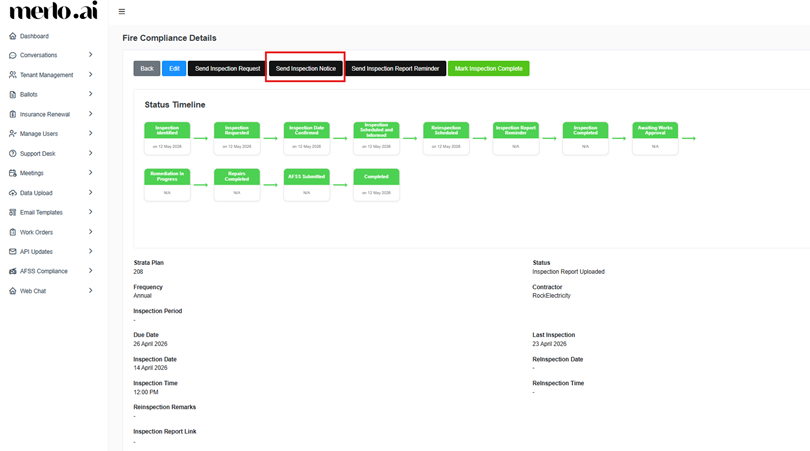
[SCREENSHOT: Button for Send Inspection Notice]
- Click Send Inspection Notice.
- Confirm the dialog by clicking Ok.
- The system drafts an email in Outlook addressed to the relevant lot owners with the following suggested format:
| Field | Content |
| Subject | Fire Safety Inspection Notice – Strata Plan [Number] – [Date] |
| Body | Dear Unit Owner, this is to inform you that a mandatory fire safety inspection will be conducted at your property on [Date] at [Time]. Please ensure the unit is accessible during the inspection period. If you have any questions, please contact your strata manager. Thank you for your cooperation. |
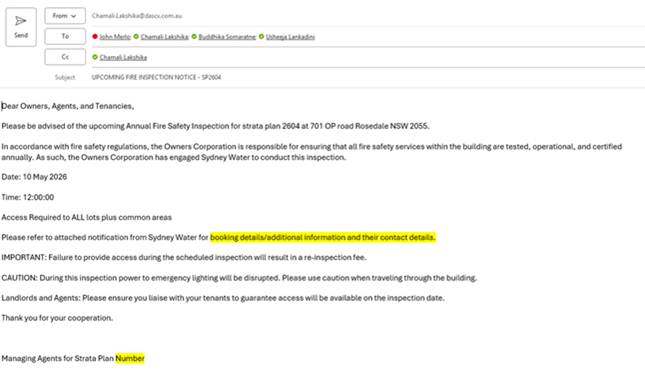
[SCREENSHOT: Outlook draft email for inspection notice to lot owners]
5 Send Inspection Report Reminder #
If the inspection has been completed but the report has not been received from the contractor, send a reminder using this button.
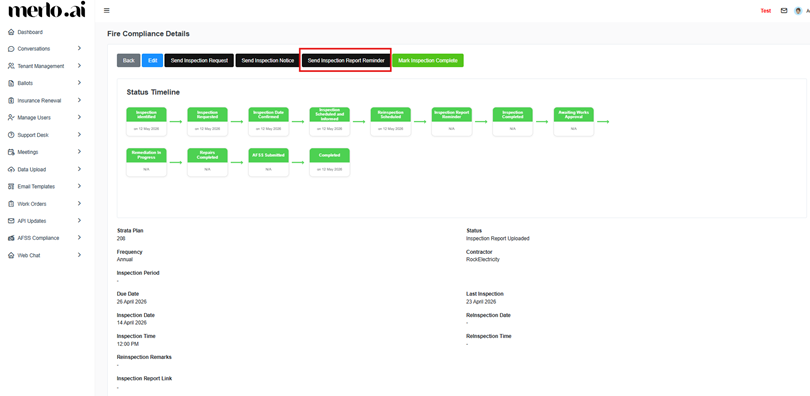
[SCREENSHOT: Button for Send Inspection Report Reminder]
- Click Send Inspection Report Reminder.
- Confirm the dialog by clicking Yes.
- The system drafts an email in Outlook with the following format:
| Field | Content |
| Subject | Reminder: AFSS Inspection Report Required – [Strata Plan Number] |
| Body | Dear [Contractor Name], this is a reminder to please share the inspection report for the fire compliance inspection you performed on [Date] at [Time] for Strata Plan [Number]. Please send the report as soon as possible so we can update our records. Best regards. |
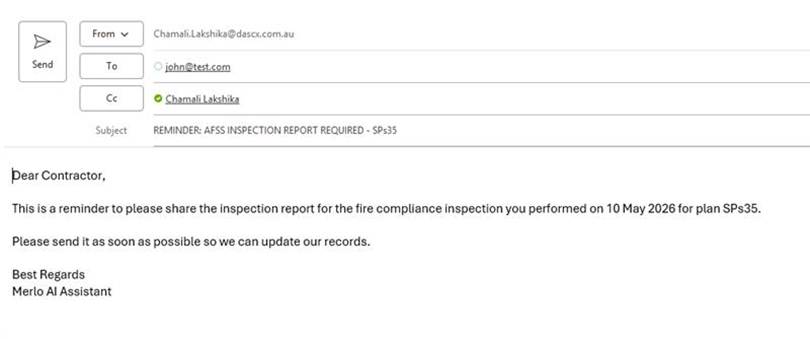
[SCREENSHOT: Outlook draft email for inspection report reminder]
6 Uploading the Inspection Report #
The inspection report link in the record can be populated in two ways:
Option A – Upload directly to SharePoint #
Navigate to the relevant SharePoint folder for this Strata Plan and upload the inspection report file directly. The system will automatically populate the Inspection Report Link field in the record once the file is uploaded.
Option B – Use the Microsoft Teams Agent #
You can use the Teams agent to upload the report to SharePoint by attaching the file and entering the following prompt:
| Suggested Teams Agent Prompt: Please upload the attached inspection report to the SharePoint folder for Strata Plan [Strata Plan Number] under the Fire Compliance documents section, and please proceed with the next set of actions. |
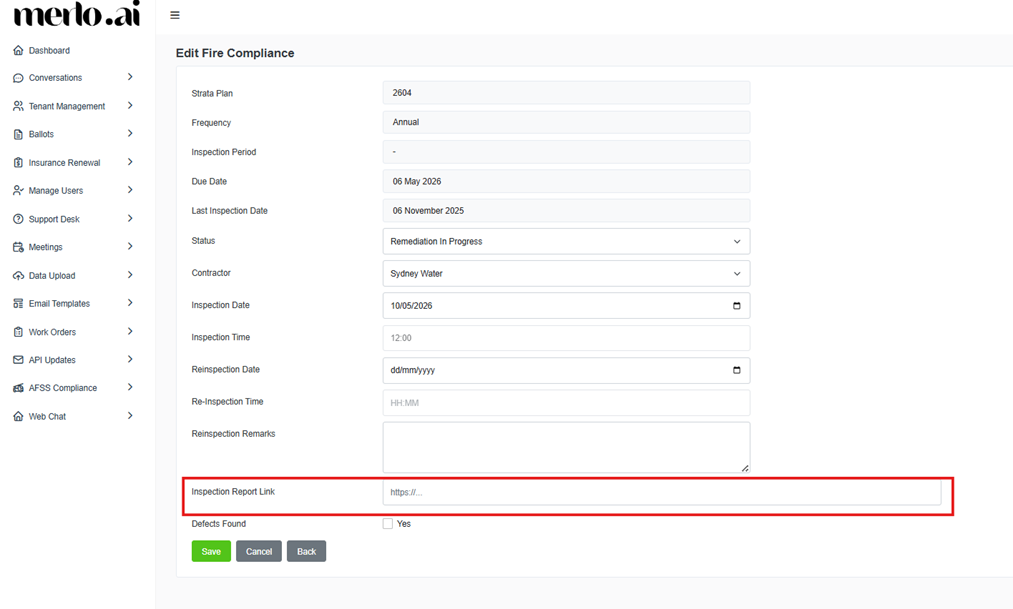
[SCREENSHOT: Inspection Report Link field on the Fire Compliance edit screen]
7 Mark Inspection Complete #
Once the inspection is done and all details are recorded:
- Click Mark Inspection Complete on the detail screen.
- A confirmation dialog appears: Are you sure you want to do this? Click Ok to proceed or Cancel to go back.
- A success message confirms: Inspection marked as complete successfully.
- The status timeline updates to reflect the completed stage.
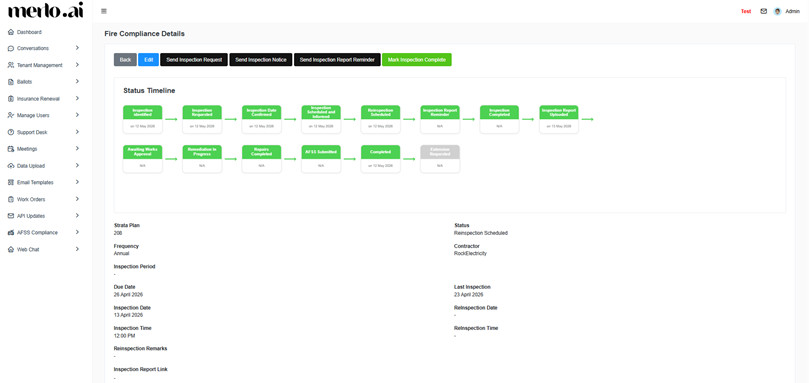
[SCREENSHOT: Button for Mark as Complete]


