1. Downloading the Sample CSV Template #
On the AFSS Upload screen [Data Upload > AFSS Upload] , click the Download Sample CSV button to obtain the template file. This template contains all the fields required for a valid upload.
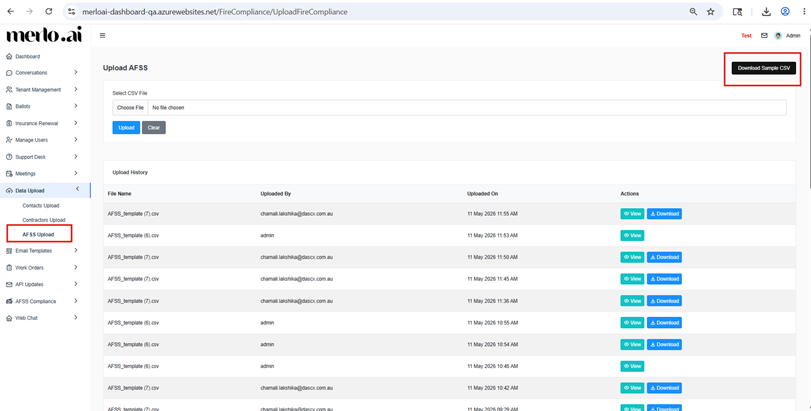
[SCREENSHOT: AFSS Upload screen showing the Download Sample CSV button]
2. CSV Field Reference #
The table below describes every field in the AFSS CSV template. Fields marked as Mandatory must be populated; leaving them blank will cause an upload error.
| Field Name | Required | Description |
| Strata Plan Number | Mandatory | The unique Strata Plan identifier matching the record in MRI Strata system. |
| AFSS Contractor ID | Optional | The contractor ID as recorded in the MRI Strata system. |
| AFSS Due Date | Mandatory | The annual due date by which all inspection documents must be submitted. |
| Council Email | Optional | Local council email address to receive finalised sign-off AFSS documents. |
| Fire Rescue Email | Optional | Fire and rescue service email address to receive finalised sign-off AFSS documents. |
| Building Manager Email | Optional | Email address of the building manager to receive finalised sign-off AFSS documents. |
| Approval Email | Optional | Email of the person who provides final approval. |
| Is Bi-Annual | Optional | Set to 1 if inspections are required every six months; otherwise, 0. |
| Is Quarterly | Optional | Set to 1 if inspections are required every quarter; otherwise, 0. |
| Is Monthly | Optional | Set to 1 if inspections are required every month; otherwise, 0. |
- Strata Plan Number and AFSS Due Date are mandatory. Uploading a file without these fields will generate an error.
- Boolean fields (Is Bi-Annual, Is Quarterly, Is Monthly) use 1 = Yes and 0 = No.
- If a Strata Plan appears more than once in the CSV, the system automatically deduplicates and retains only one record, because a single Strata Plan can only have one AFSS due date.
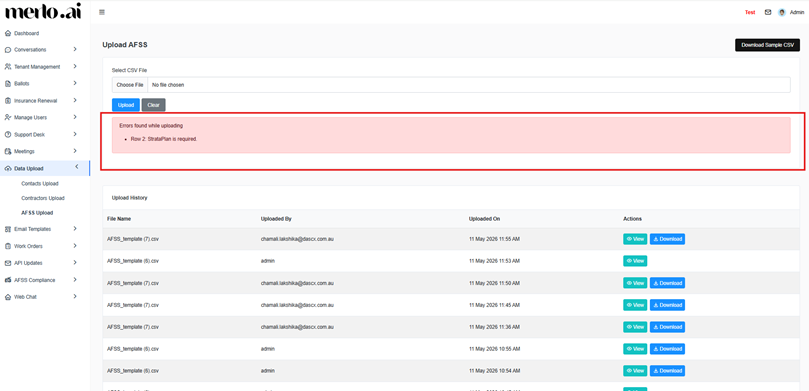
[SCREENSHOT: Example of an error message when mandatory fields are missing]
3 Understanding Inspection Frequencies #
A single appliance or property can have multiple inspection frequencies active at the same time. Set the relevant frequency fields to 1 for each applicable schedule.
| Frequency | Example Appliance | Field to Set to 1 |
| Monthly | Fire hoses requiring monthly inspection | Is Monthly = 1 |
| Quarterly | Sprinkler systems inspected every quarter | Is Quarterly = 1 |
| Bi-Annual | Fire extinguishers inspected every six months | Is Bi-Annual = 1 |
| Annual | Always enabled – mandatory for all records | Automatically set to Yes |
- The AFSS Due Date represents the end of the annual compliance year. All inspection documents regardless of frequency; must be submitted to the relevant authorities on or before this date.
4 Uploading the Completed CSV #
- Return to the AFSS Upload screen.
- Click Choose File and select your completed CSV.
- To remove the selected file before uploading, click Clear.
- Click Upload to submit the file.
- Once uploaded successfully, the record will appear in the Upload History section.

[SCREENSHOT: AFSS Upload screen with file selected, showing Upload and Clear buttons]
5 Upload History #
The Upload History section on the AFSS Upload screen lists all previously uploaded files. Each row shows:
- File Name
- Uploaded By (user)
- Uploaded On (date and time)
- Action buttons to view and download the uploaded file
To view the records from a specific upload, click the View button on the relevant row. The detail screen shows Strata Plan number, Contract ID, frequency (displayed as a comma-separated list for multiple active frequencies, e.g., Monthly, Bi-Annual), and the due date.

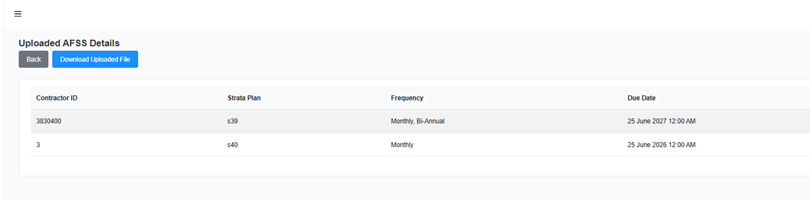
[SCREENSHOT: Upload History screen with View and Download buttons highlighted]
- Uploaded records cannot be deleted.


