1 How Records Appear in the List #
The Fire Compliance List is populated automatically by the weekly schedule, which runs every Sunday at 12:00 AM. During each run, the system calculates which inspections are due within the current week (Sunday to the following Saturday) based on the lead times described in Section 5.
For example: if a monthly inspection is due on 30 May, the process starts 14 days earlier on 16 May. If 16 May falls within the current Sunday-to-Saturday window, that record is added to this week’s list.
- Records that are not actioned remain in the list until completed, including records from previous weeks or months.
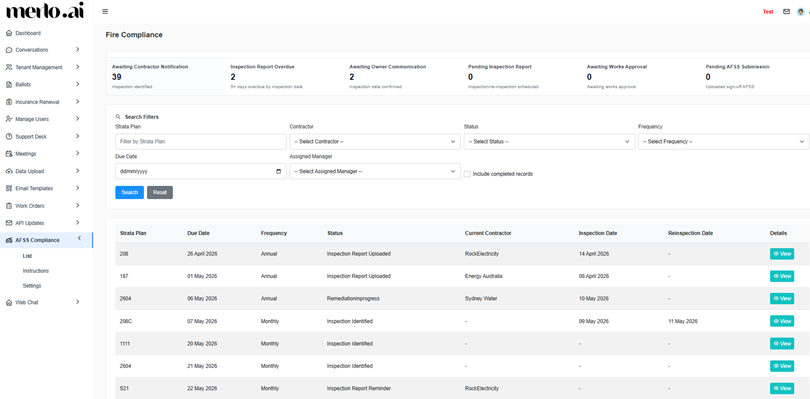
[SCREENSHOT: Fire Compliance List screen showing active records with status]
2 KPI Tiles #
The top of the Fire Compliance List displays KPI tiles showing the count of records in each stage:
| KPI Tile | Description |
| Inspection Identified | Number of records that have been identified but not yet actioned. |
| Inspection Report Overdue | Number of records where the inspection date has passed by more than 5 days with no report received. |
| Awaiting Contractor Communication | Number of records where the inspection date has been confirmed but communication from the contractor is pending. |
| Pending Inspection Report | Number of records where an inspection is scheduled but the report has not yet been received. |
| Awaiting Works Approval | Number of records where works approval is pending. |
| Pending AFSS Submission | Number of records where the signed AFSS document is ready but not yet submitted. |
3 Searching and Filtering #
Use the search filters below the KPI tiles to narrow down records:
- Strata Plan Number
- Contractor (dropdown)
- Status (dropdown)
- Frequency (dropdown)
- Due Date
- Strata Manager (dropdown)
Check the Include Completed Records checkbox to include records that have already been finalised in the search results. Click Search to apply filters or Reset to clear them.
4 Weekly and Daily Emails #
Each Sunday at 12:00 AM, an automated weekly email is sent to the strata manager listing all inspections due for that week in a table format, including Strata Plan number and due date.
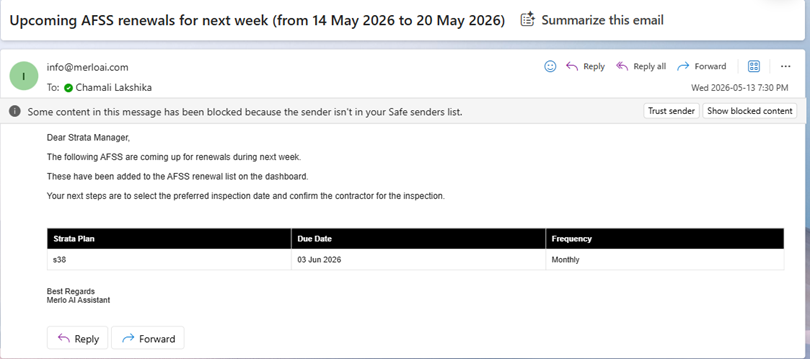
[SCREENSHOT: Sample weekly schedule email to the strata manager]
If a new record is added to the system after the Sunday run (for example, at 12:10 AM on Sunday), the daily schedule sends a separate email containing only those newly added records. This ensures the strata manager has enough time to action them before the next Thursday.
- The daily email is only sent when there are new records to action. If no new records are added, no daily email is sent.
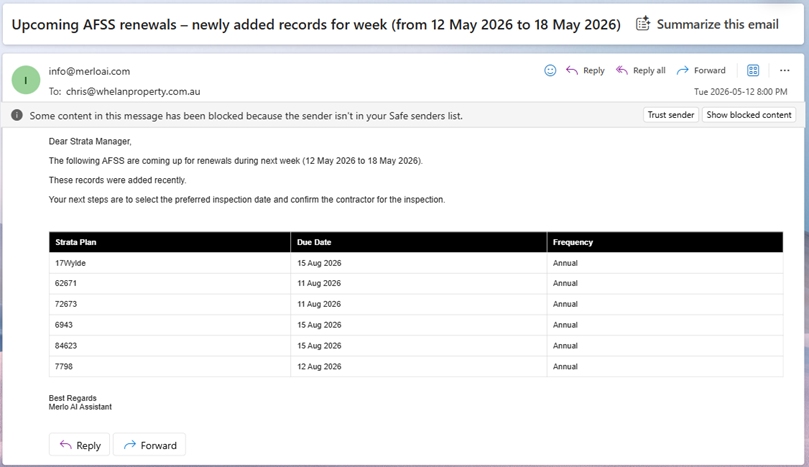
[SCREENSHOT: Sample daily schedule email showing newly added records]
Strata managers can also log in to the dashboard at any time to view all records requiring action without waiting for emails.


