Table of Contents
1 Status Timeline #
The status timeline appears at the top of each Fire Compliance detail screen. It shows a visual summary of the record’s progress through the following stages:
- Inspection Identified – the initial status when a record is created.
- Inspection Requested – after Send Inspection Request is clicked.
- Inspection Date Confirmed – after the inspection date and time are saved.
- Inspection Scheduled and Informed – after the inspection schedule is confirmed and communicated.
- Inspection Schedule – after the inspection schedule is set.
- Inspection Report Reminder – after an inspection report reminder is sent.
- Inspection Completed – after Mark Inspection Complete is clicked.
- Inspection Report Uploaded – after the inspection report is uploaded.
- Awaiting Works Approval – after inspection is complete and works approval is pending.
- Remediation in Progress – after remediation works have commenced.
- Repairs Completed – after all remediation works are completed.
- AFSS Submitted – after the final signed AFSS document is uploaded.
- Completed – after all requirements for the compliance record are finalised.
- Extension Requested – after an extension request has been submitted.
Completed stages are shown in green colour. Pending stages are greyed out.
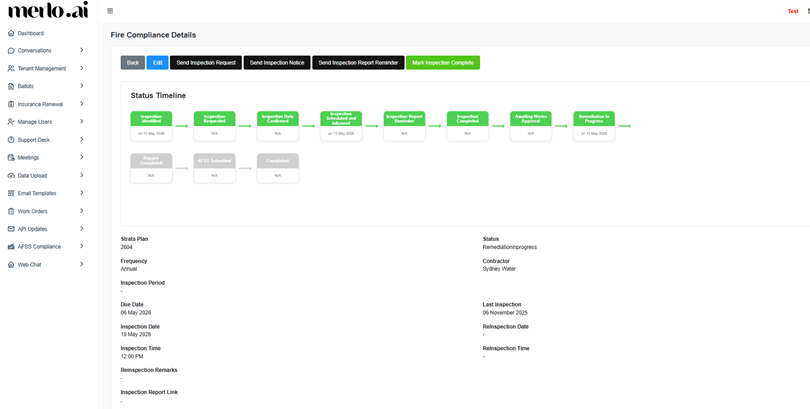
[SCREENSHOT: Status timeline showing completed and pending stages]
2 Detailed Activity Log #
Below the status timeline, the detailed activity log provides a full audit trail of everything that has happened on the record, including:
- Date and time of each action
- User who performed the action
- Description of what was done (e.g., Contractor assigned, Status changed from Inspection Identified to Inspection Requested)
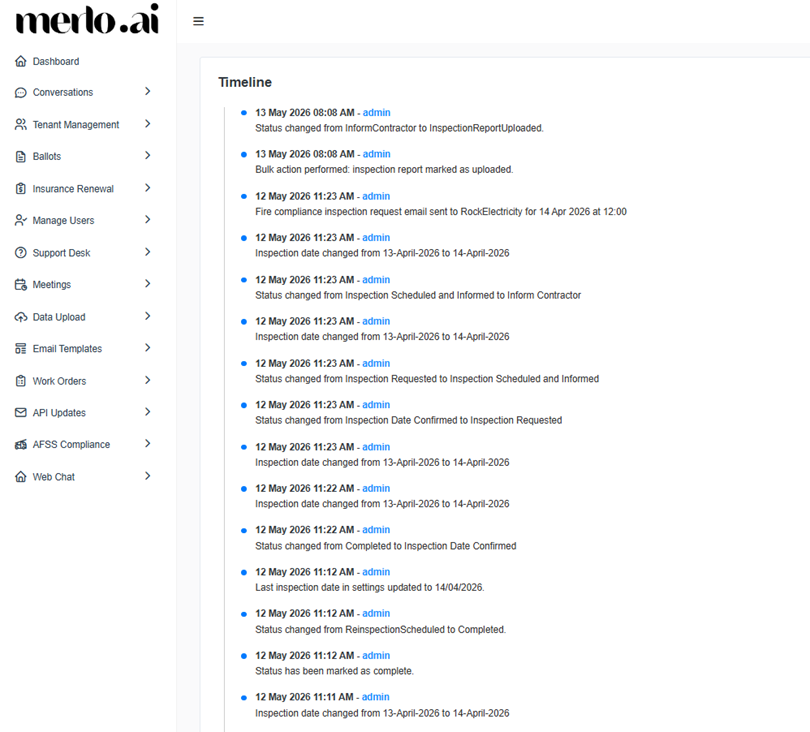
[SCREENSHOT: Detailed Timeline view]


