1 Accessing the Settings Screen #
Uploaded data flows automatically into the AFSS Compliance Settings screen. You can also access it manually via the menu: AFSS Compliance > Settings.
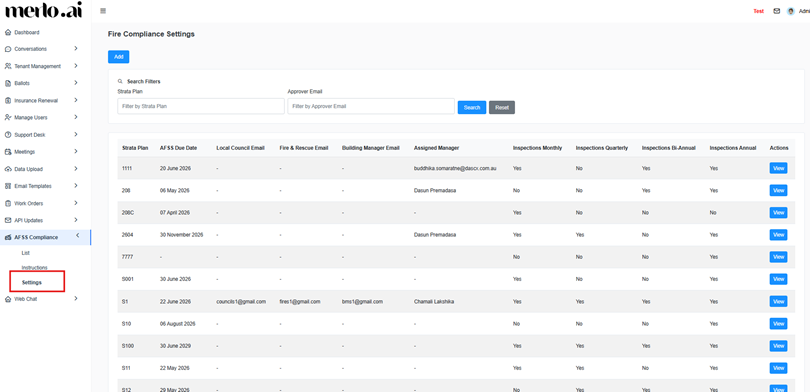
[SCREENSHOT: Menu path: AFSS Compliance > Settings]
2 Settings Screen Overview #
The settings screen lists all AFSS compliance records with the following columns:
- Strata Plan Number
- AFSS Due Date
- Local Council Email
- Fire and Rescue Email
- Building Manager Email
- Assigned Strata Manager
- Inspection Monthly (Yes / No)
- Inspection Quarterly (Yes / No)
- Inspection Bi-Annual (Yes / No)
- Inspection Annual (always Yes – this is set to Yes by default)
- Action button – View
Values that were set to 1 in the CSV are displayed as Yes here. Values set to 0 are displayed as No.
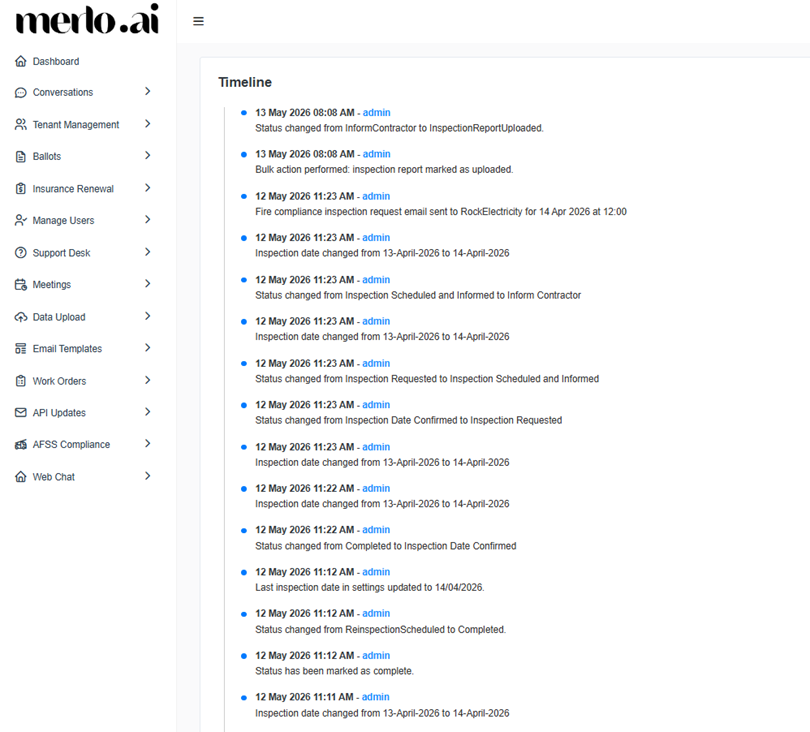
[SCREENSHOT: AFSS Compliance Settings list screen with all columns visible]
Clicking the View button on any record opens the View screen, which displays the following details:
- Strata Plan Number
- AFSS Due Date
- Inspection period days before due date:
- Compliance Due (Annual): 90 days
- Monthly: 14 days
- Quarterly: 21 days
- Bi-Annual: 30 days
- Local Council Email
- Fire & Rescue Email
- Building Manager Email
- Committee Email
- Assigned Strata Manager
- Inspection Flags:
- Inspection Monthly (Enabled / Disabled)
- Inspection Quarterly (Enabled / Disabled)
- Inspection Bi-Annual (Enabled / Disabled)
- Inspection Annual (Enabled / Disabled)
- Last Inspection Dates:
- Last Inspection Date
- Monthly Last Inspection Date
- Quarterly Last Inspection Date
- Bi-Annual Last Inspection Date
- Created On (date and time), Created By (user)
- Modified On (date and time), Modified By (user)
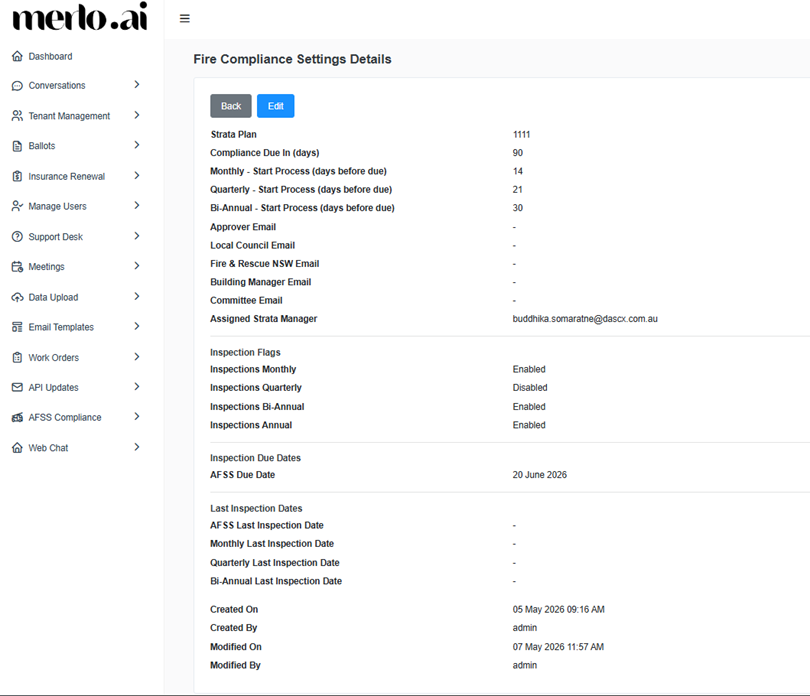
[SCREENSHOT: AFSS Compliance Settings view screen]
3 Adding a Record Manually #
If you are not ready to do a bulk upload, you can add individual records manually, you can add individual records manually.
- On the AFSS Compliance Settings screen, click the Add button.
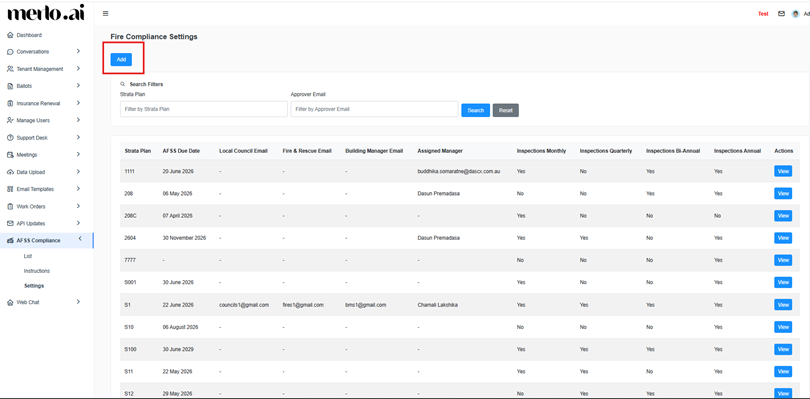
[SCREENSHOT: AFSS Compliance Settings adding records manually]
- Enter all required details in the form.
- Click Save to add the record or Cancel to discard.
Added records appear immediately in the settings list.
4 Searching Records #
Use the search bar at the top of the settings screen to filter records by:
- Strata Plan Number
- Approval Email
Click Search to apply filters or Reset to clear them.
5 Editing a Compliance Record #
Click the View [Action] button on any record to open the Fire Compliance detail screen, then click Edit.
Editable fields:
- Strata Plan Number [Mandatory]
- Inspection Period
- Last Inspection Date
- AFSS Due Date [Mandatory]
- Approval Email, Fire and Rescue Email, Building Manager Email, Council Email (multiple addresses can be entered)
- Assigned Strata Manager (selected from a dropdown of all strata managers in the system)
- Inspection flags: Monthly, Quarterly, Bi-Annual, Annual (checkbox toggles, pre-populated from the CSV upload but can be adjusted here)
Click Save to apply changes or Cancel to discard.
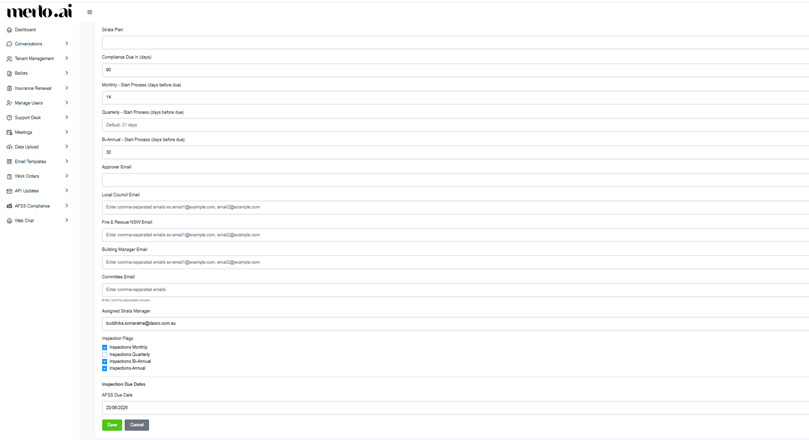
[SCREENSHOT: Edit screen for a Fire Compliance record with all editable fields highlighted]


